Two screens are easy to confuse, and they do opposite things. Team members are the people shown on your public site. Team accounts are the people who can sign in to your console. Someone can be one, the other, or both.
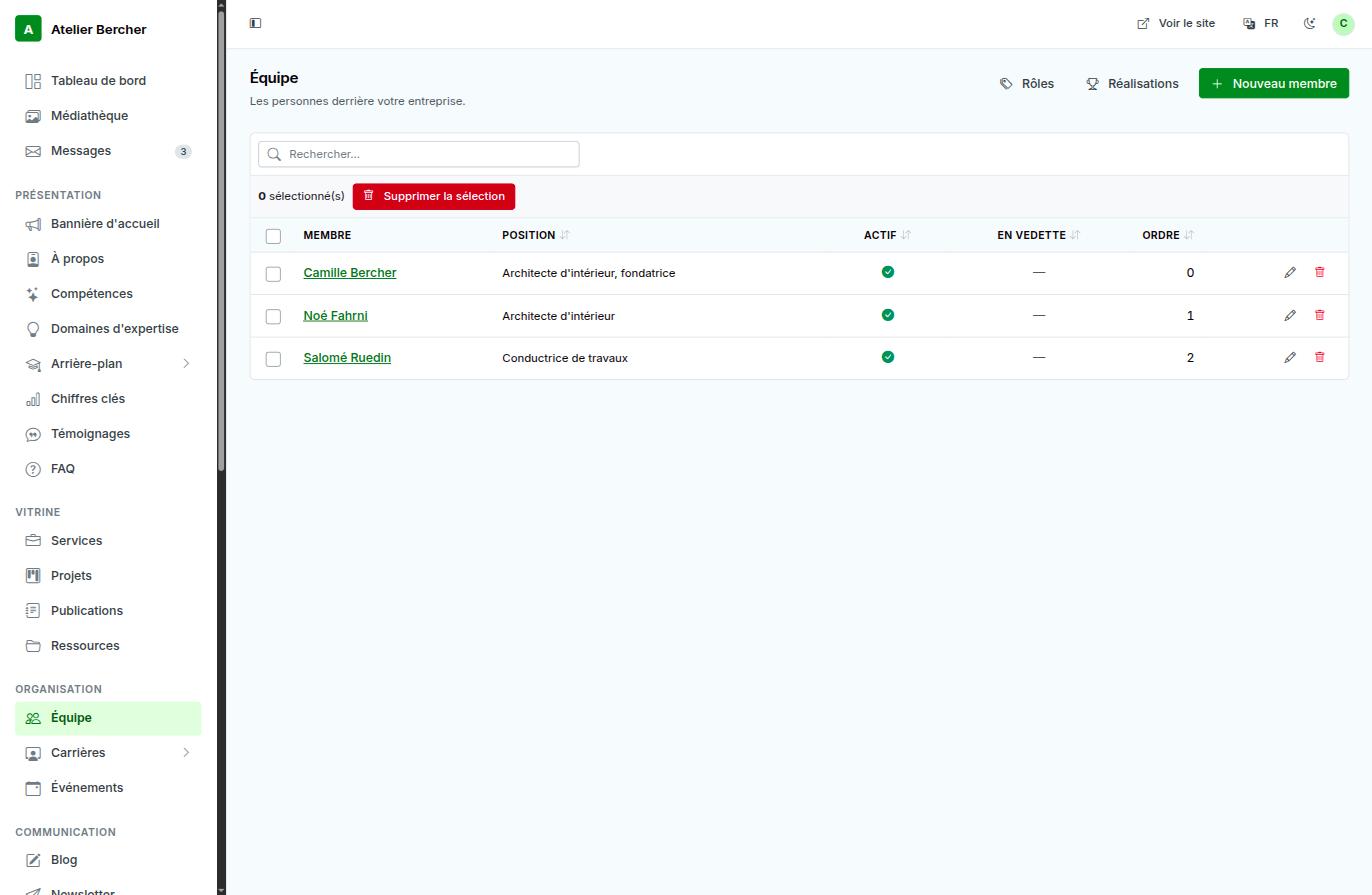
Showing someone on the site
- New member, then their name and position.
- A photo if you have one. A member without a photo is fine; a blurry selfie is not.
- Order decides who comes first, Active hides someone without deleting them — useful for a colleague who has left, whose projects still mention them.
Giving someone access to the console
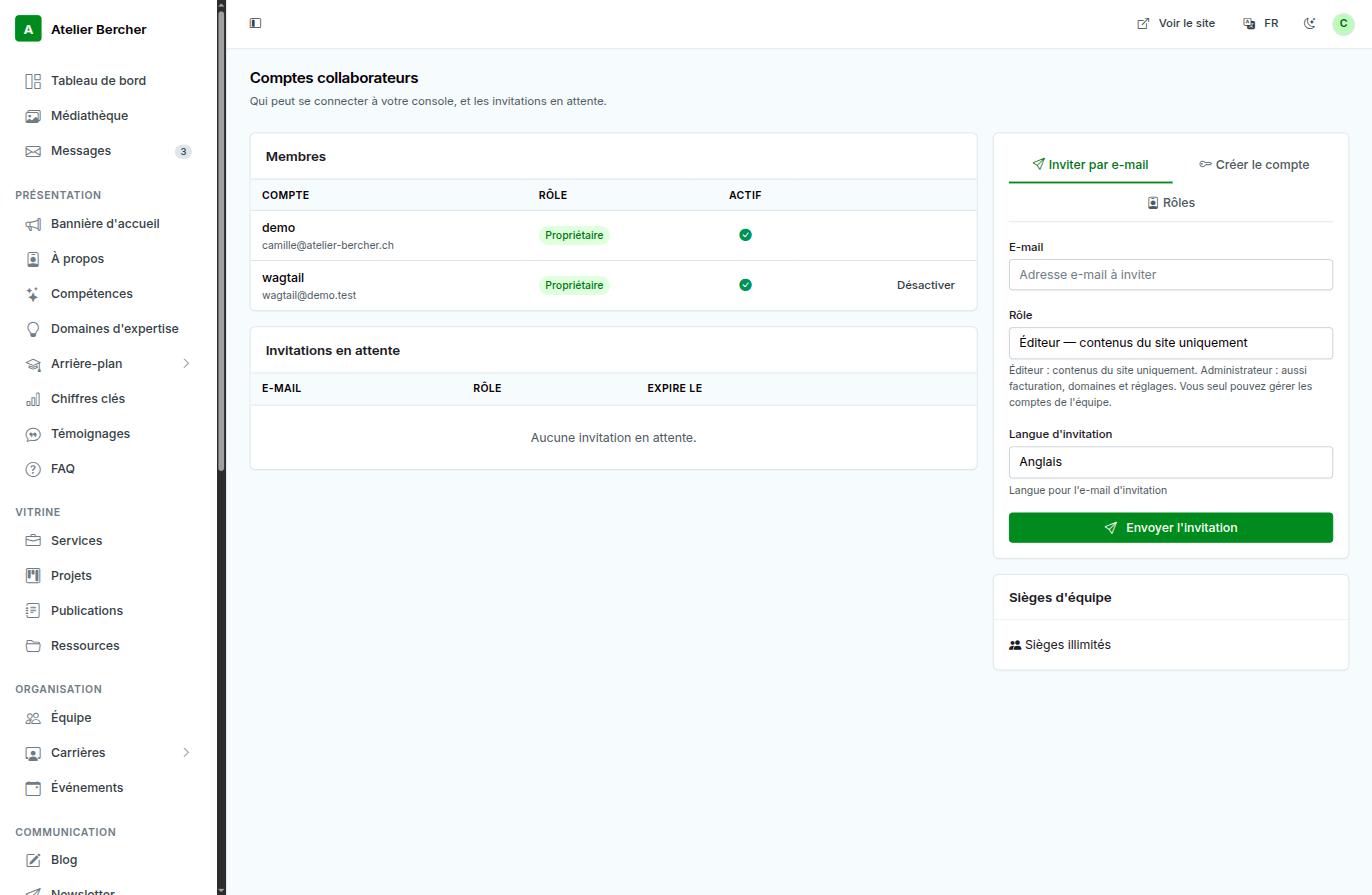
- Enter their email address and choose the role — Editor for site content only, Admin for invoicing, domains and settings too. Only you manage the accounts themselves.
- Choose the invitation language. It is the language of the email they receive, not the language of their console.
- Send. The invitation appears under Pending invitations with its expiry date, so you can see who has not accepted yet.
Removing an access
Deactivate closes the account without deleting what that person wrote. Do it the day someone leaves — an access nobody uses is an access nobody watches.
Five accounts are included in your plan. Beyond that, add seats one at a time or switch to unlimited; the screen shows which of the two you are on.